QUICK START
Your first ride.
Your next story.
From opening MotoJot to saving your first route. Then meet your Garage—and your riding community.
Real iPhone app screenshots with demonstration data. Android follows the same main tabs; permission screens vary by phone. Screenshots are examples, not a promise of live nearby results.
01 / INSTALL & OPEN
Start on your own terms.
Install MotoJot from an available store link on our Downloads page, then open the app. The five main tabs are Rides, Record, Garage, Cross Roads, and Guilds.
Recording and your local ride journal work without signing in. An account adds online backup, restoration, and community access. Without a synchronized account, local data is not a backup—removing the app can remove your rides.
02 / GET READY
Make room for the road.
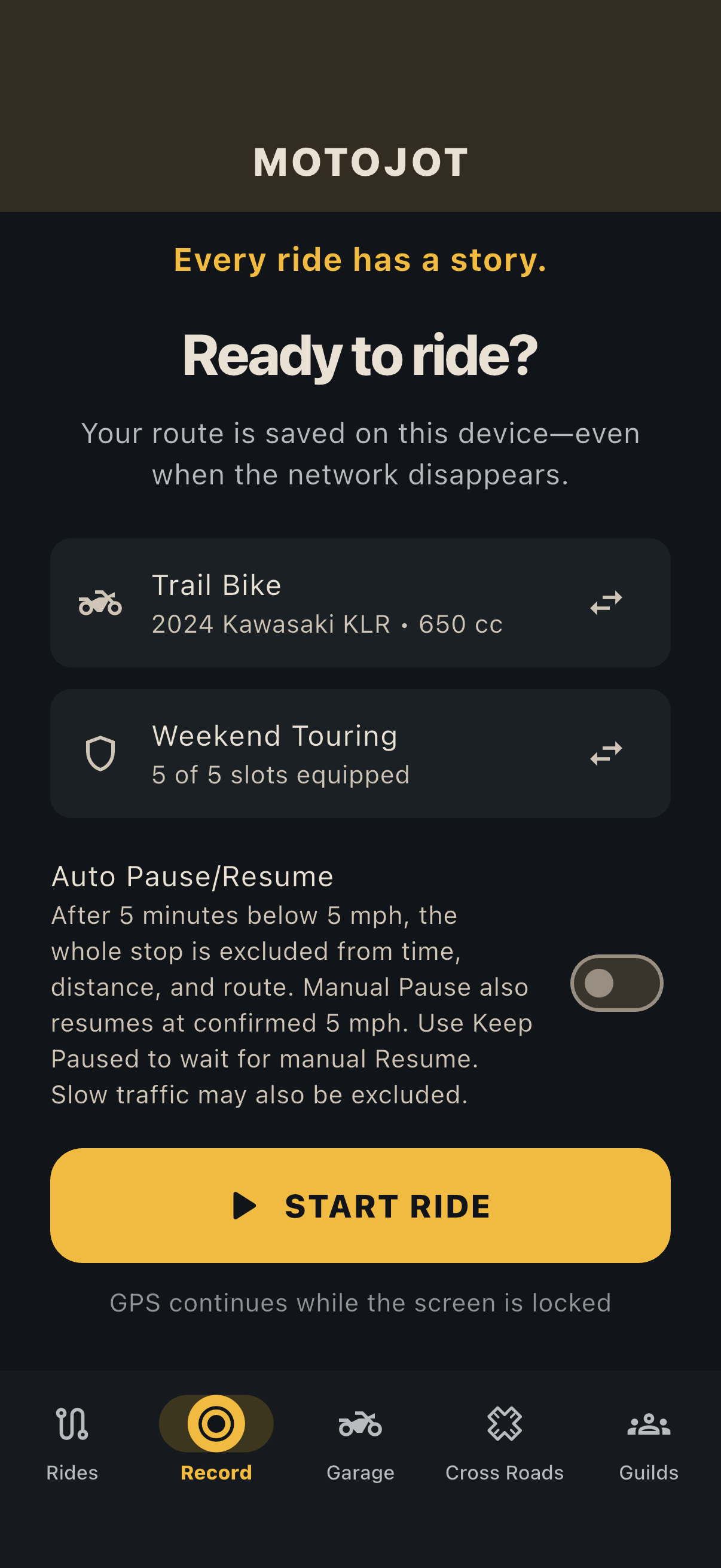
Open Record. You can select a bike or loadout if you have already created them—or leave both unassigned and start riding.
- Turn on your phone’s location services and allow the location permissions MotoJot requests. Precise location helps keep your route accurate.
- iPhone: allow background location access (Always) when requested so recording can continue with the screen locked.
- Android: allow background/all-the-time location access and the ongoing recording notification when requested. Avoid restricting MotoJot’s background activity.
- If a required permission is missing, follow the app’s recovery prompt to open Settings. Account-activity push alerts are separate from GPS recording.
Auto Pause/Resume is optional and off by default. When enabled, five continuous minutes below 5 mph exclude the whole qualifying stop from time, distance, and route. It resumes after two reliable readings at 5 mph or faster—not after another five minutes.
Slow traffic or slow off-road riding can also qualify as a stop. Leave this option off when that would exclude riding you want to keep.
03 / START YOUR RIDE
Tap Start Ride. Keep the story.
Tap Start Ride while safely stopped. Once location permissions are ready, MotoJot records your GPS route on this device. The Record screen shows riding status, active ride time, distance, and speed.
GPS recording works without a mobile-data signal. Map tiles, online backup, nearby discovery, and community features may need an internet connection. A blank or unavailable map does not necessarily mean GPS recording has stopped.
You can lock your screen while recording with the required permissions. Opening another tab or Notifications does not end the ride.
Stop somewhere safe before using app controls. Don’t operate MotoJot while moving.
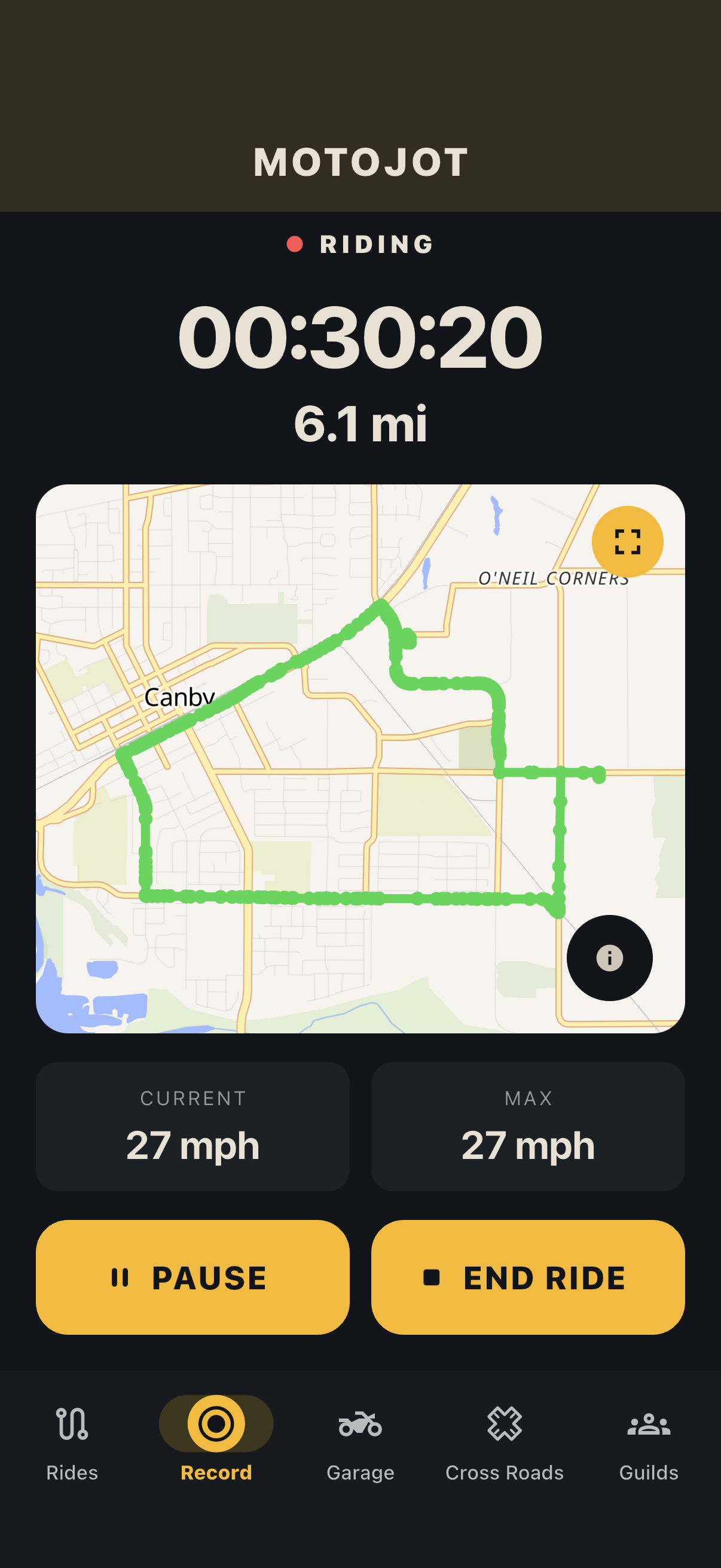
Map: OpenFreeMap · © OpenMapTiles · Data from OpenStreetMap, rendered with MapLibre.
04 / PAUSE & FINISH
Take a break. Finish intentionally.
- Pause: stops ride time and location collection for the effective route immediately. With Auto Pause/Resume enabled, GPS keeps monitoring speed and can resume after two reliable 5+ mph readings.
- Keep Paused: stops automatic resumption until you tap Resume. Use it when movement during a break should not restart your ride.
- Auto-paused: means a qualifying stop was excluded; GPS monitoring continues. Short stops below five minutes remain recorded unless you manually pause.
- Resume: manually restarts a paused ride. Route segments remain separate across pauses.
- End Ride: opens confirmation. Confirm when you are finished. MotoJot never automatically ends a ride.
If you forget to finish, “Still riding?” reminders can help after extended inactivity; background delivery depends on permissions and the operating system. If recording is interrupted, use the app’s Resume, Finish, or Discard recovery choices.
05 / REVIEW YOUR STORY
A ride becomes a Jot.
Find your completed recording in Rides and tap it. Review the map, distance, elapsed time, moving time, speed, and elevation statistics. Pinch to zoom or use the map’s expand control for a full-screen view.
- Edit the ride name, add private notes, or assign a bike and Rider setup.
- Add photos from your library or camera after completing the ride. Photo limits depend on membership.
- Add weather conditions and a representative temperature manually; no automatic weather lookup is required.
- Use Trim Ride to adjust the beginning or end of a completed ride, or reset its trim later.
Editing your private journal does not automatically publish it. Sharing requires a separate preview and confirmation.
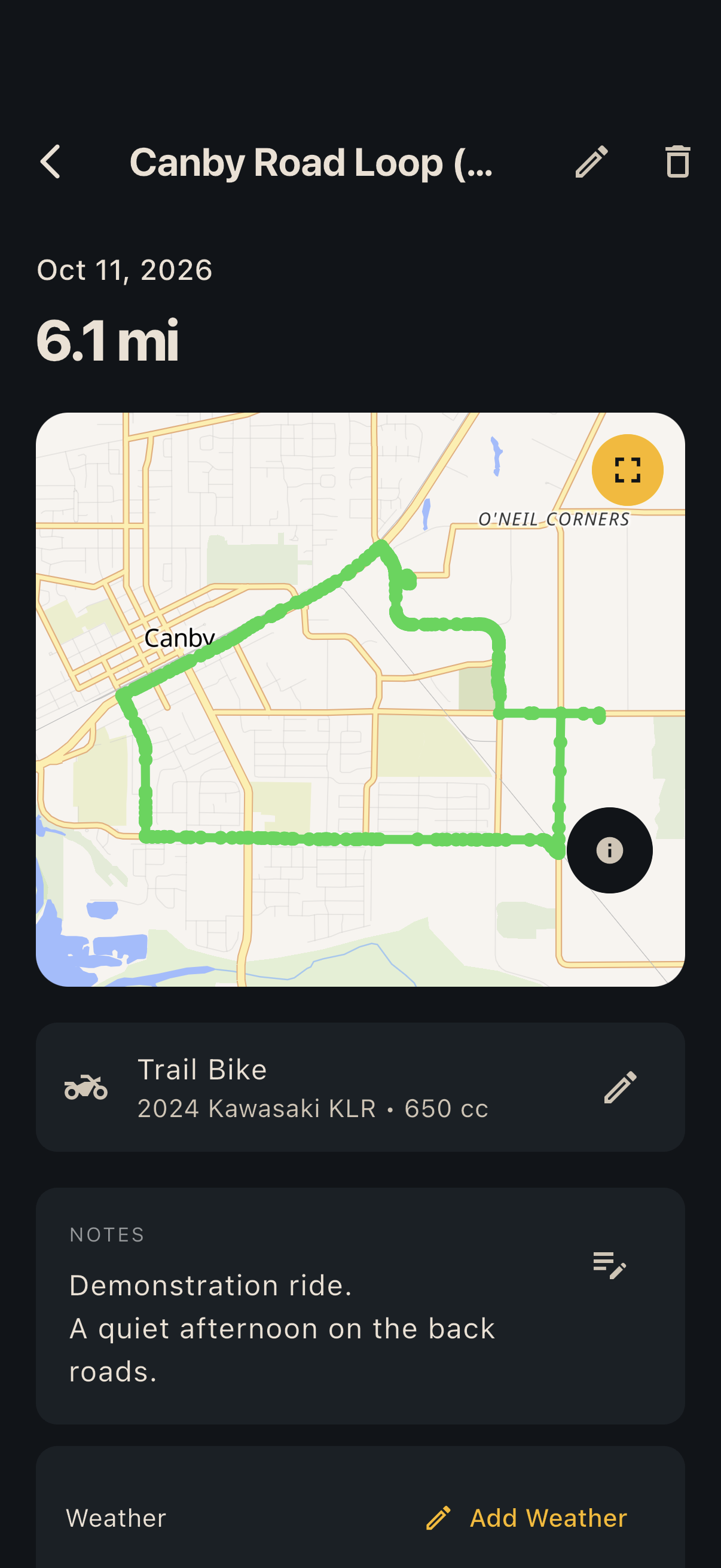
Map: OpenFreeMap · © OpenMapTiles · Data from OpenStreetMap, rendered with MapLibre.
06 / YOUR GARAGE
Your bikes. Your gear. Your style.
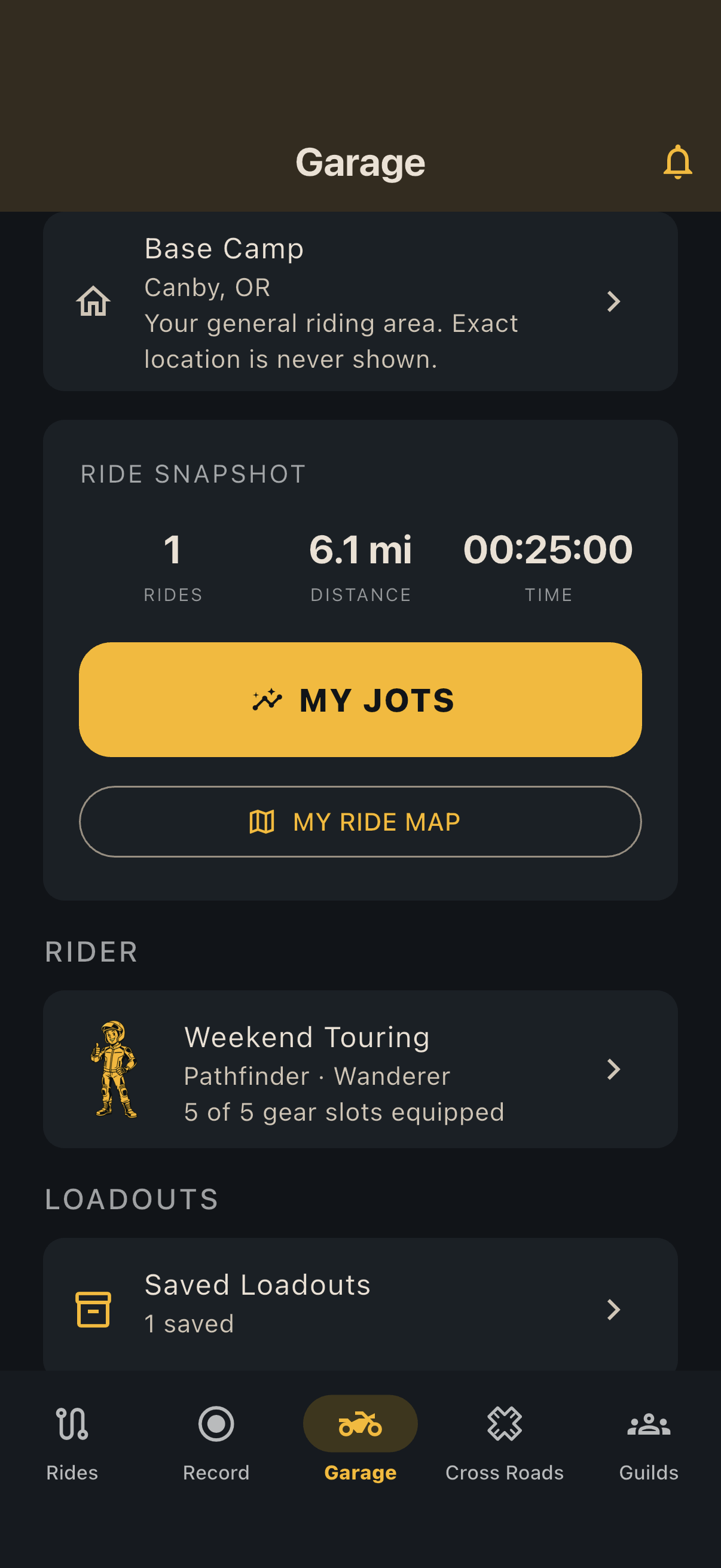
Open Garage to make MotoJot your own. This is also where you find account controls, Public Profile, Base Camp, membership, and Notifications.
- My Jots: opens overall ride statistics, including Total Moving Time.
- My Bikes: add motorcycles and choose a default. Open a bike for assigned ride totals, notes, preferred tire pressures, and oil-change history.
- Oil changes: save the service date, optional odometer, and your own intervals. The next mileage target is service odometer plus mileage interval; the next date is service date plus month interval. MotoJot-derived mileage is an estimate, not a complete motorcycle odometer.
- My Gear: tap Manage for helmets, jackets, pants, gloves, and boots, with personal ratings and notes.
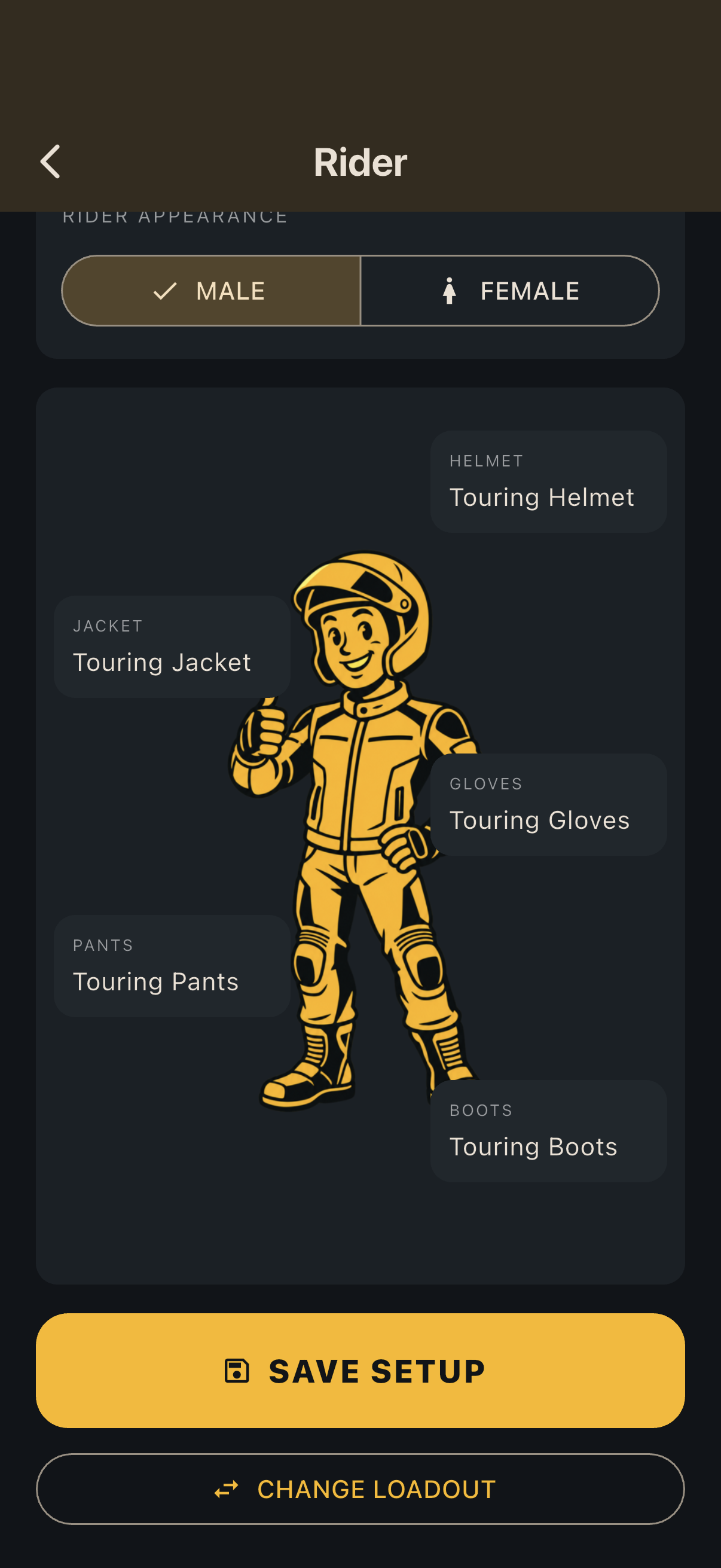
- Rider: choose your appearance and optional primary/secondary Rider classes, then assign gear to the five equipment slots.
- Loadouts: save and apply named equipment combinations. Choose one before starting a ride if desired.
07 / FIND YOUR PEOPLE
Your next road could be nearby.
When you want online backup and community access, use the account controls in Garage to register or sign in. Follow any email-verification prompts for features that require a verified account. Give pending local data time to synchronize.
- Set Base Camp: choose your city or ZIP and a radius in Garage. It represents a general riding area, not your live location.
- Open Cross Roads: use Rides or Riders, choose Nearby or All Rides, and change the area or radius. Current Location is a temporary search center when you explicitly request it.
- Choose your public visibility: Public Profile is opt-in. Select what to share and review the confirmation. Showing Base Camp on an enabled profile also makes you discoverable in Nearby Riders.
- Join a Guild: Guild access and group ride planning require MotoJot Plus. Open a planned ride to respond Going/Maybe/Not Going. For a completed Shared Guild Ride, use I Rode With This Group to confirm participation; it appears in shared history, not as a new personal recording. Link your own recording if you made one.
Private routes are not automatically shared. Review the privacy-protected route and any selected photos before publishing. Nearby ride matching uses the publicly shared route, while Nearby Riders uses visible, approximate Base Camp areas—not live rider locations.
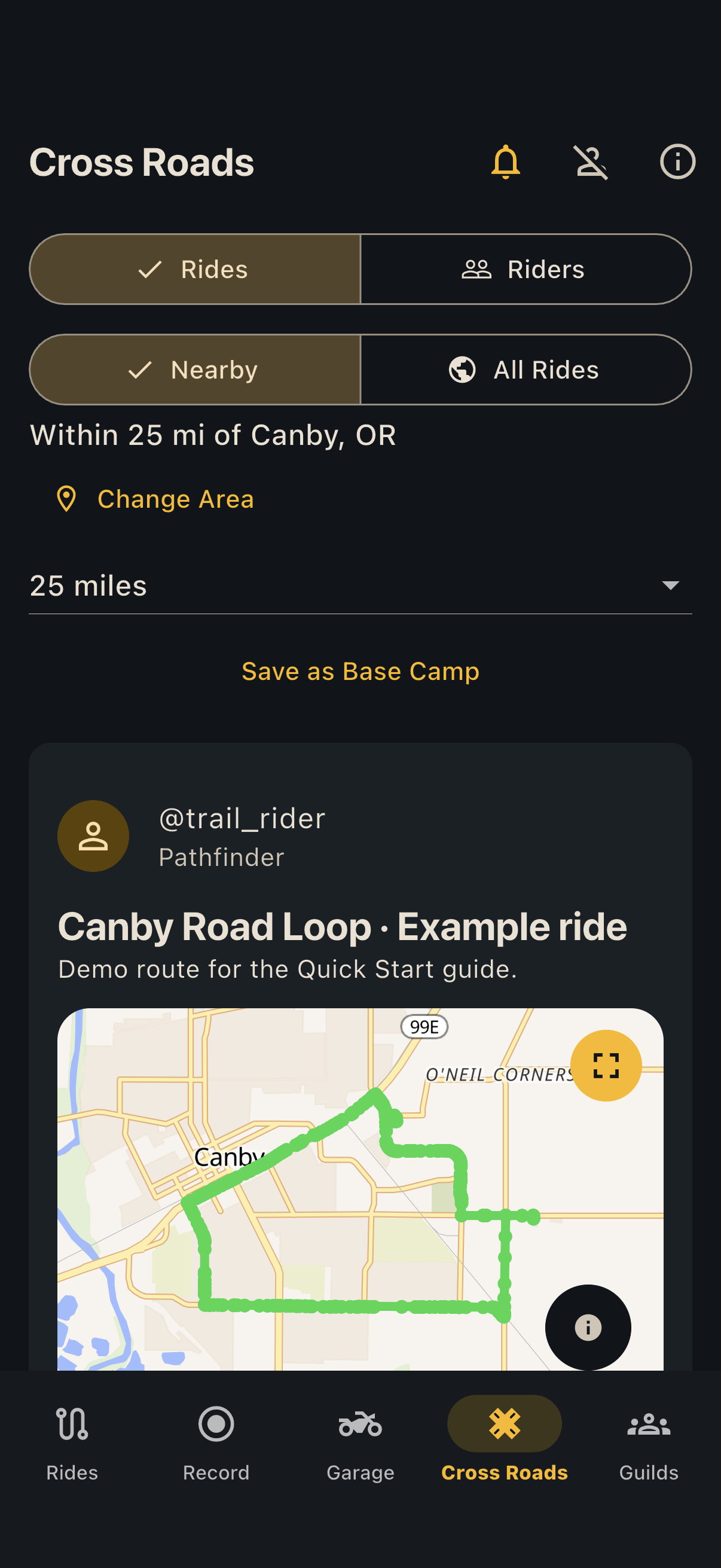
Map: OpenFreeMap · © OpenMapTiles · Data from OpenStreetMap, rendered with MapLibre.
You’re ready for the next story.
Start simple: record a ride, finish it, and review your Jot. Build your Garage and community when you are ready.
Need help? Email support@motojot.com. Never send passwords or private ride data.